
Overview
Managed Google Play is Google's enterprise app store and the sole source of applications for Android Enterprise. You can use Intune to orchestrate app deployment through Managed Google Play for any Android Enterprise scenario (including work profile, dedicated, and fully managed enrollments).
You must have connected your Intune tenant to Managed Google Play. (Connect your Intune account to your Managed Google Play account)
If you intend to enroll work profile devices, make sure you have configured Intune and Android work profiles to work together in the Device enrollment workload of the Azure portal. For more information, see Enroll Android devices.
Details
- Sign in to the Microsoft Endpoint Manager admin center.
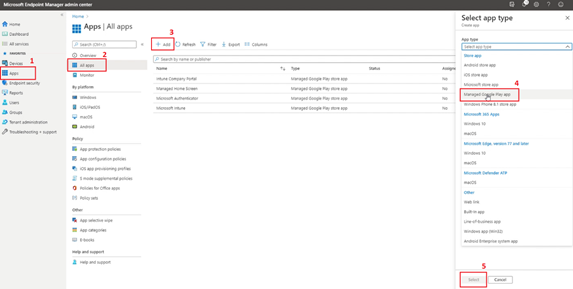
- Select Apps> All apps > Add.
- In the Select app type pane, under the Other app types, select Managed Google Play app. Click Select.
- The Managed Google Play app store is displayed.
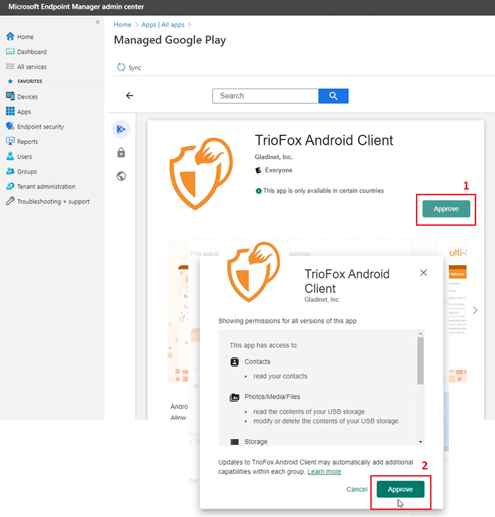
- Search an app and access it to view the details, click Approve. A window for the app opens asking you to give permissions for the app to perform various operations.
- Select Approve to accept the app permissions.
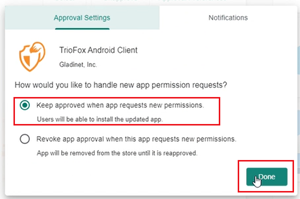
- Then, select Keep approved when the app requests new permissions in the Approval Settings tab and then click Done.
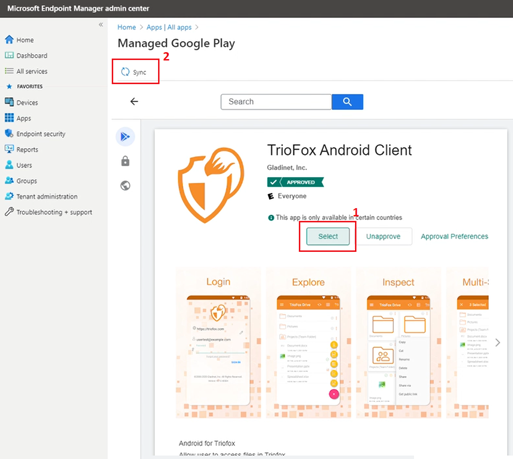
- Click Select to select the app and click Sync at the top of the blade to sync the app with the Managed Google Play service.
- Click Refresh to update the app list and display the newly added app.
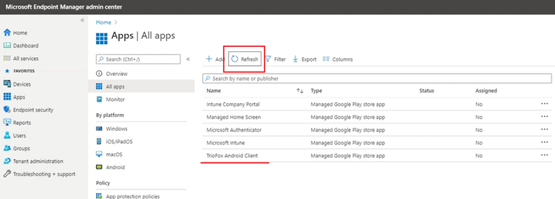
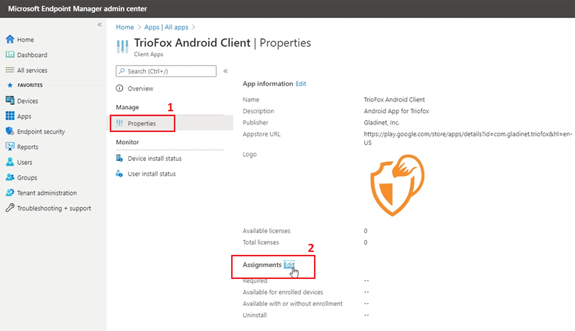
- To assign the App, click on it to see the details, go to Properties and Edit the Assignments.
- Select the group assignments for the app. For more information, see Add groups to organize users and devices.
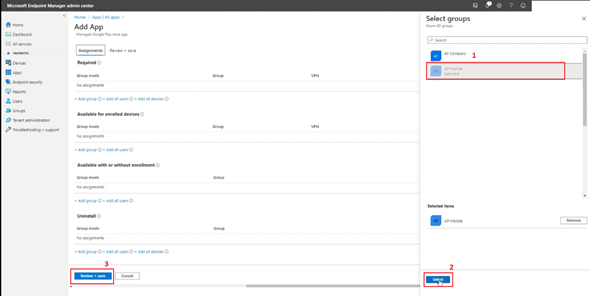
- Click Review + Saveto review the assignments entered for the app.
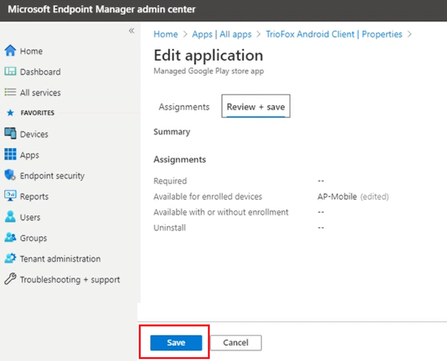
- When you are done, click Save.
-
From the Android phones and tablets, assigned users will see the App and can proceed to install it (following the permissions assigned).
Comments
0 comments
Please sign in to leave a comment.